CONTAINER APPS · CASE STUDY
From docker-compose.yml to a live app — in the panel and with cdnctl
A complete, copy-paste walkthrough for developers who want to try the platform fast. We take a small but realistic multi-service project — a web API, a background worker, and managed Postgres + Redis — and run it on CDN.com.tr Managed Containers straight from a single docker-compose.yml. The same scenario is shown two ways: point-and-click from the management panel, and end-to-end with the cdnctl CLI. Pick whichever you prefer.
Two managed apps (web, worker), each wired to a managed Postgres and Redis add-on, and the web app live on its own https://<uid>.cdn.com.tr subdomain — all created from the compose file, no Dockerfiles or YAML for Kubernetes.
The example project
The web service counts visits in Postgres and caches the latest count in Redis; the worker is a no-port background loop sharing the same managed add-ons. Both images are prebuilt and pushed to a registry the platform can pull (built for linux/amd64). The platform injects the connection details automatically — your code just reads DATABASE_URL and REDIS_URL.
# docker-compose.yml
services:
  web:
    image: mediatriple/compose-demo-web:1.0.0
    ports:
      - "8080:8080"          # container port 8080 is exposed; the host side is ignored
    environment:
      APP_NAME: "Compose Demo"
    healthcheck:
      test: ["CMD", "wget", "-qO-", "http://localhost:8080/health"]
    depends_on: [db, cache]

  worker:
    image: mediatriple/compose-demo-worker:1.0.0   # no port -> stays private
    depends_on: [db, cache]

  db:
    image: postgres:16     # -> managed Postgres add-on (DATABASE_URL injected)

  cache:
    image: redis:7         # -> managed Redis add-on (REDIS_URL injected)
How services map. Each service with a prebuilt image becomes a managed app. Services whose image is postgres, mysql/mariadb, redis or nats become managed add-ons and are attached to every app that depends_on them — each consuming app gets its own add-on instance, with credentials injected as env (DATABASE_HOST/PORT/NAME/USER, REDIS_URL) and secrets (DATABASE_PASSWORD, DATABASE_URL). A service with a build: (no prebuilt image) is rejected — publish an image first. Max 20 services.
A · From the panel
1 · Open Container Apps
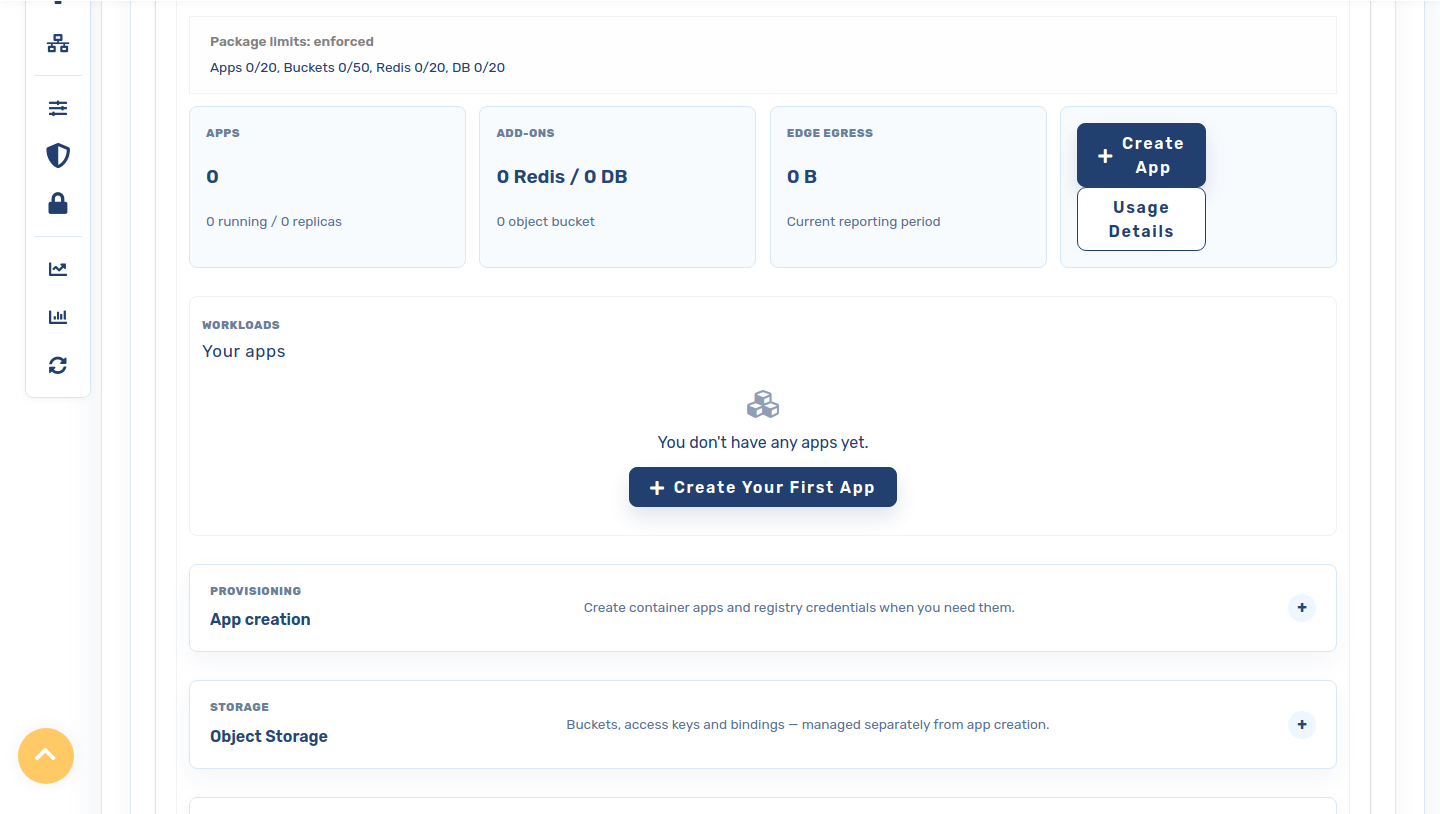
Sign in, open CDN Accounts, click the settings icon on your account and choose the Platforms tab, then Container Apps (press Activate the first time). The overview shows your package limits and an empty app list.
2 · (Private images) add a registry credential
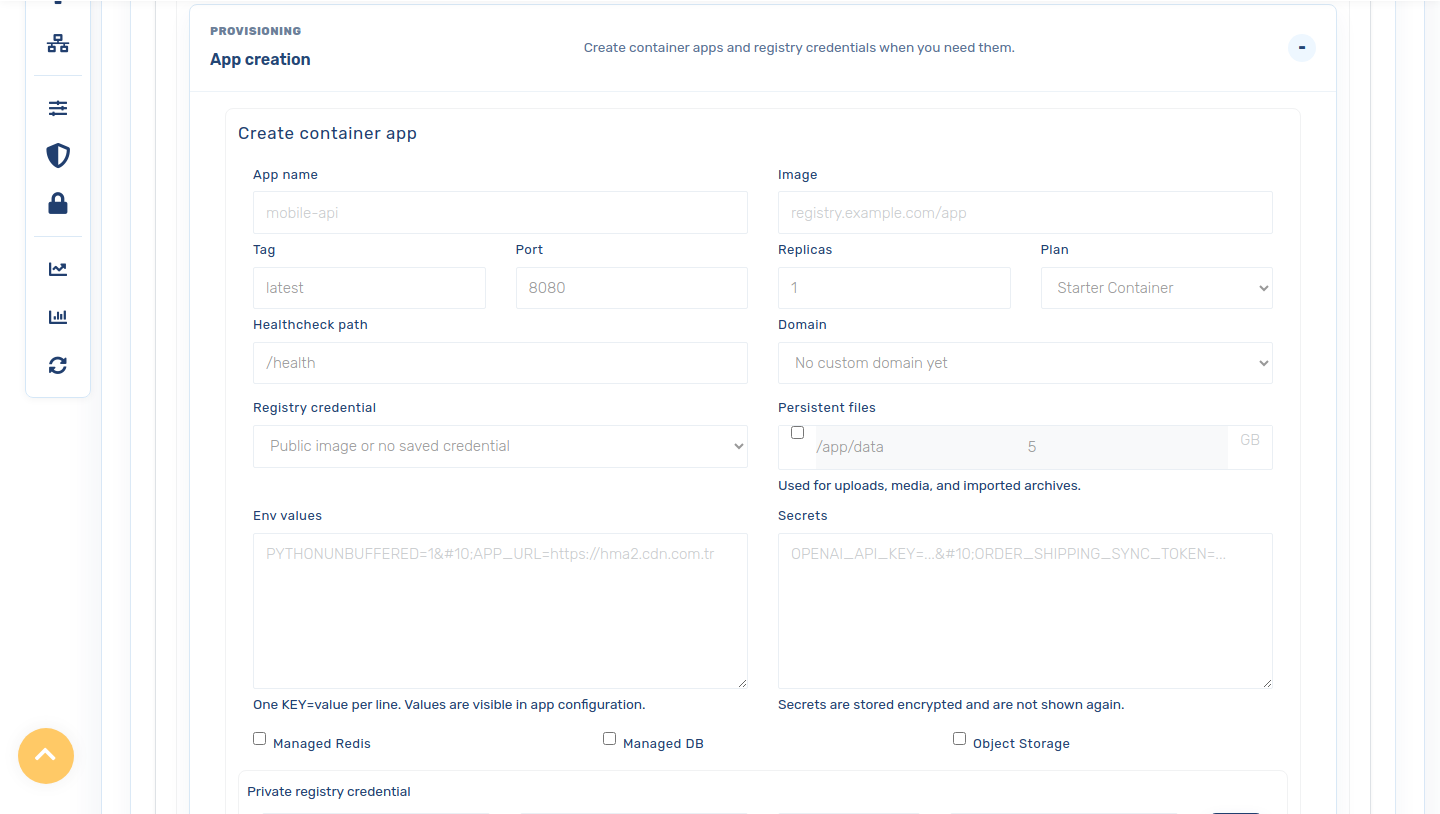
If your images are private, open Create App and, in the Private registry credential row, add a name, the registry URL (https://index.docker.io/v1/ for Docker Hub), your username and a read-only access token, then save. The token is stored encrypted and never shown again. Public images need no credential.
3 · Import From Docker Compose
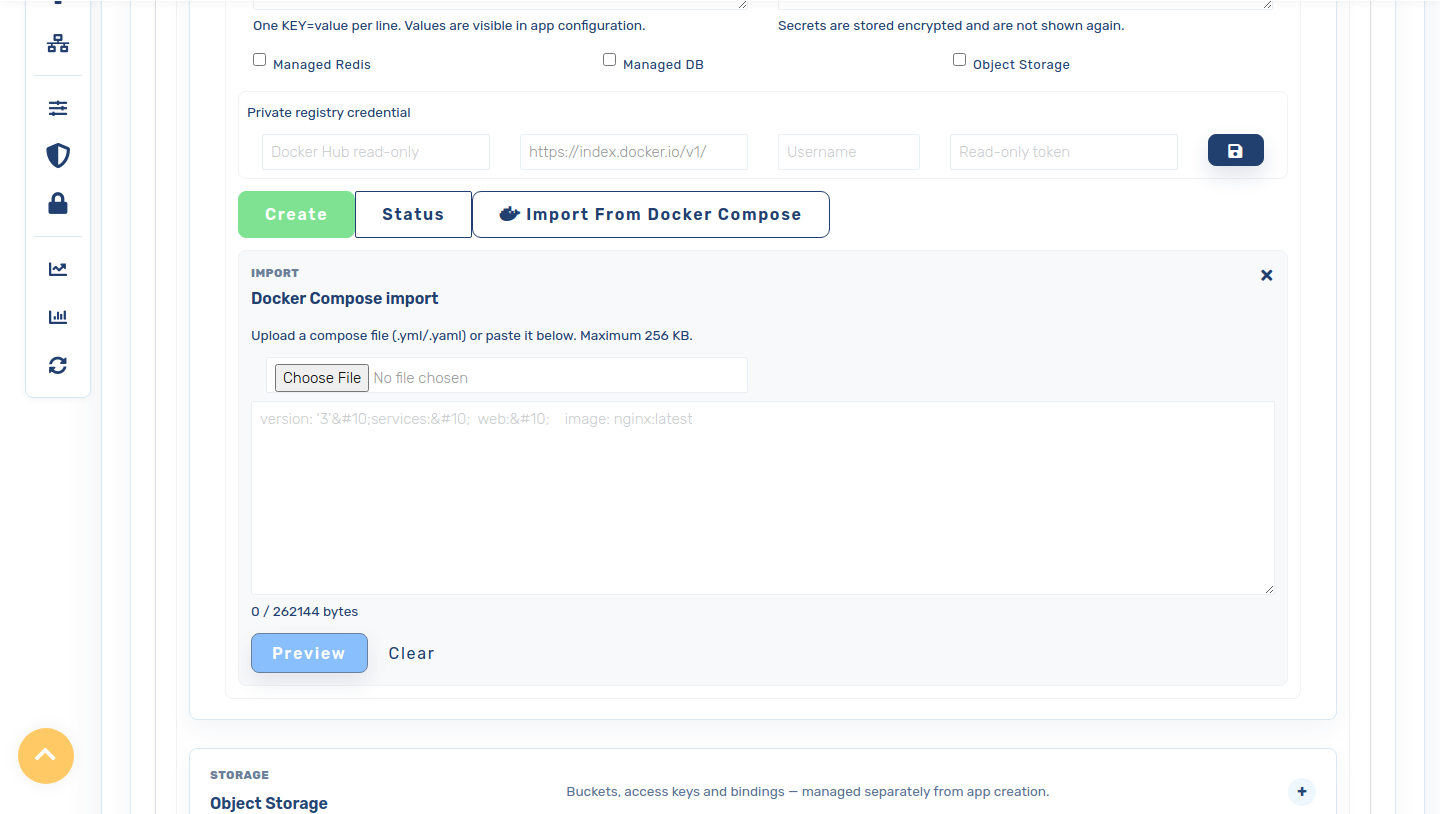
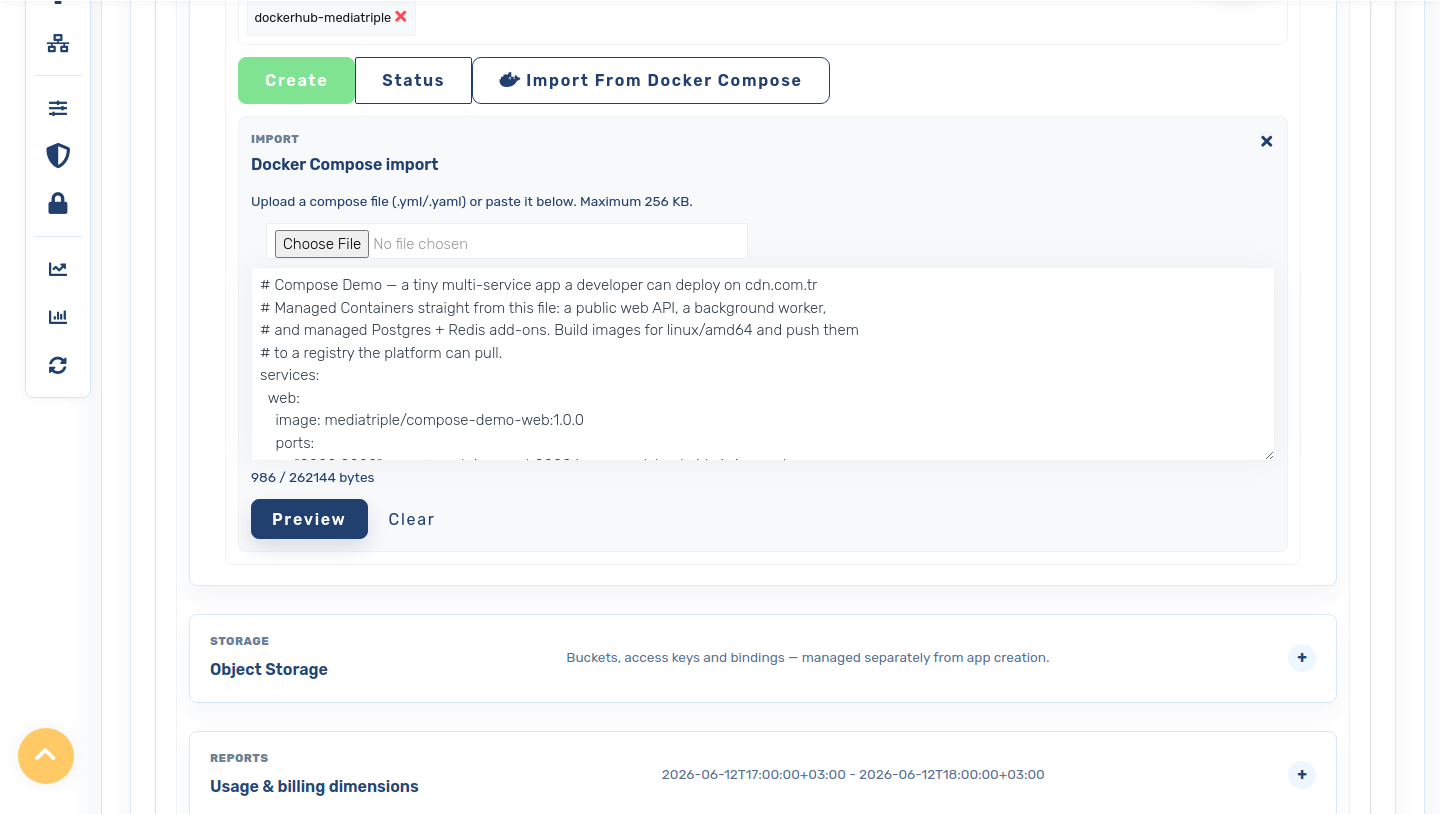
Switch to Import From Docker Compose, then upload or paste your docker-compose.yml (max 256 KB).
4 · Preview the plan
Click Preview. The platform parses the file and shows a non-destructive plan: every app it will create, the image/port/replicas, the add-ons attached, and any warnings — without touching anything yet.
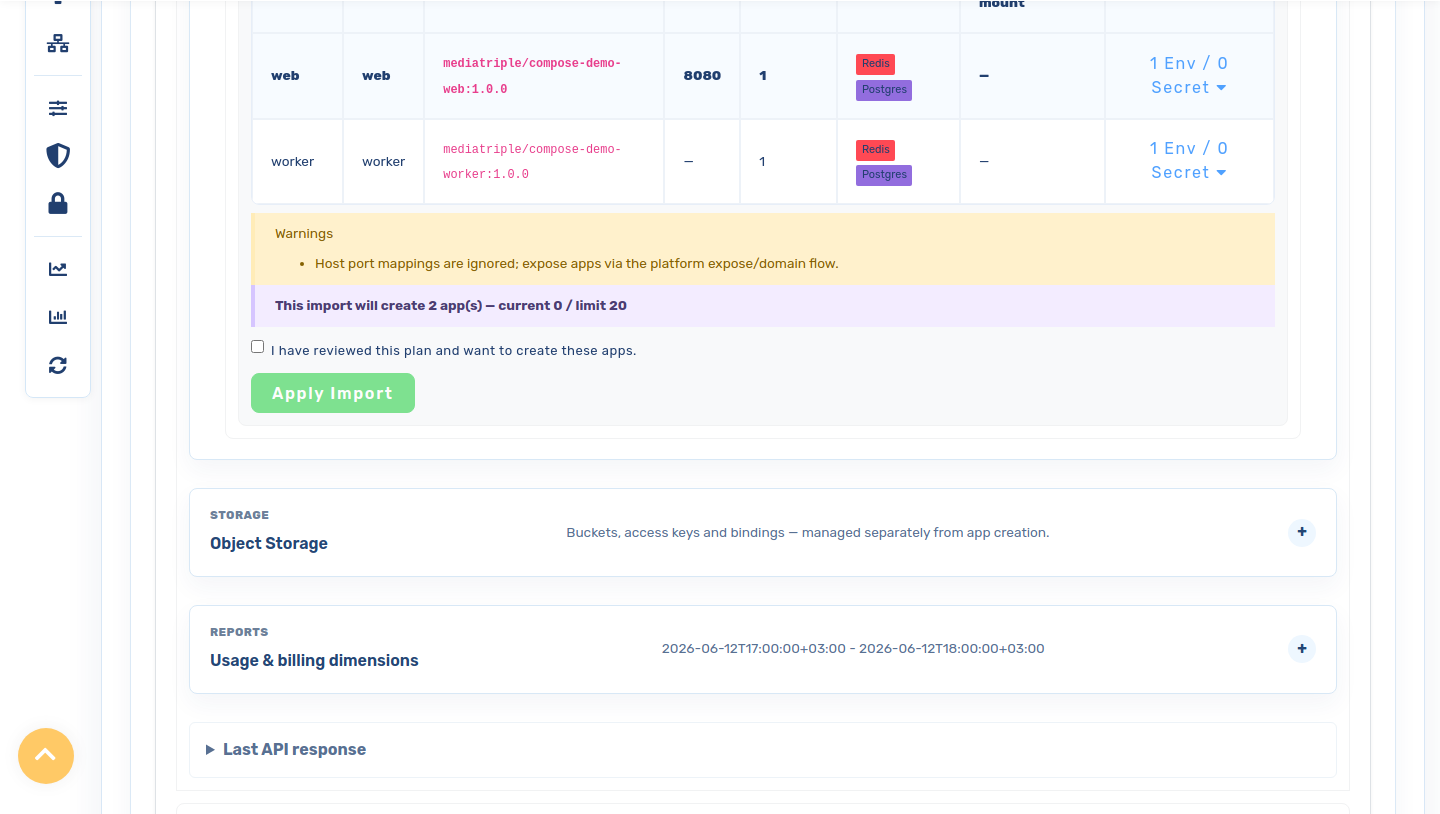
web (port 8080) and worker, each with a Redis + Postgres add-on. The warning notes that host-port mappings are ignored — you expose apps via the platform's expose/domain flow.5 · Apply, watch it deploy
Tick I have reviewed this plan and click Apply Import. Apply is all-or-nothing; the apps and add-ons are created and the deploys are queued. Within a minute the apps flip to running in the Your apps list.
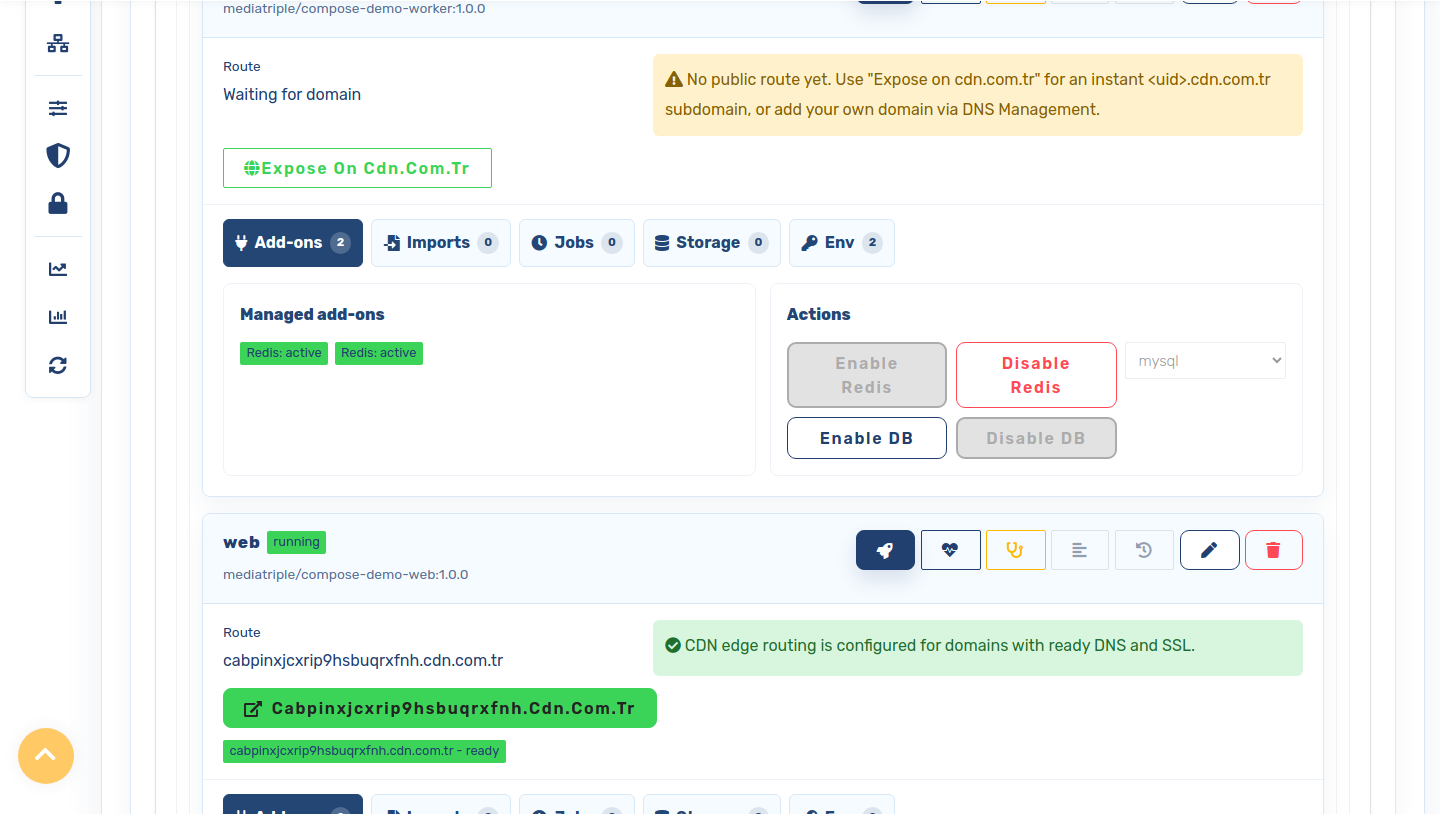
web and worker) running in the Your apps list. Open an app (Manage →) to reach its add-ons and the Expose on cdn.com.tr action.6 · Expose the web app
Open the web app (Manage →) and click Expose on cdn.com.tr to mint an instant <uid>.cdn.com.tr subdomain (HTTPS handled for you). Leave the worker private. That's it — your compose project is live. See the result ↓
B · From the terminal (cdnctl)
Every step above has a CLI equivalent. Install cdnctl, then:
1 · Log in and find your account
cdnctl login
cdnctl accounts list                 # copy your account <uuid>
2 · Preview the plan
Same non-destructive plan as the panel — returns the apps, add-ons and warnings as JSON. The preview only ever returns env/secret keys, never values.
cdnctl container compose preview --account <uuid> --file docker-compose.yml3 · Apply
Re-plans server-side (the client plan is never trusted), enforces your package entitlements, then creates the apps in dependency order.
cdnctl container compose apply --account <uuid> --file docker-compose.yml --yesPrivate images. Create a registry credential once (panel → Private registry credential, or the API), and attach it to the apps so the platform can pull — public images need nothing.
4 · Watch, expose, inspect
cdnctl container apps list   --account <uuid>
cdnctl container apps wait   --account <uuid> --app <app_uuid> --status running --timeout 300
cdnctl container apps expose --account <uuid> --app <app_uuid>   # -> <uid>.cdn.com.tr
cdnctl container apps logs   --account <uuid> --app <app_uuid> --tail 100
cdnctl container apps status --account <uuid> --app <app_uuid>
The result
The web app is live on its cdn.com.tr subdomain — visit counter persisted in the managed Postgres add-on, cached in the managed Redis add-on, both reporting connected, served by a managed replica.
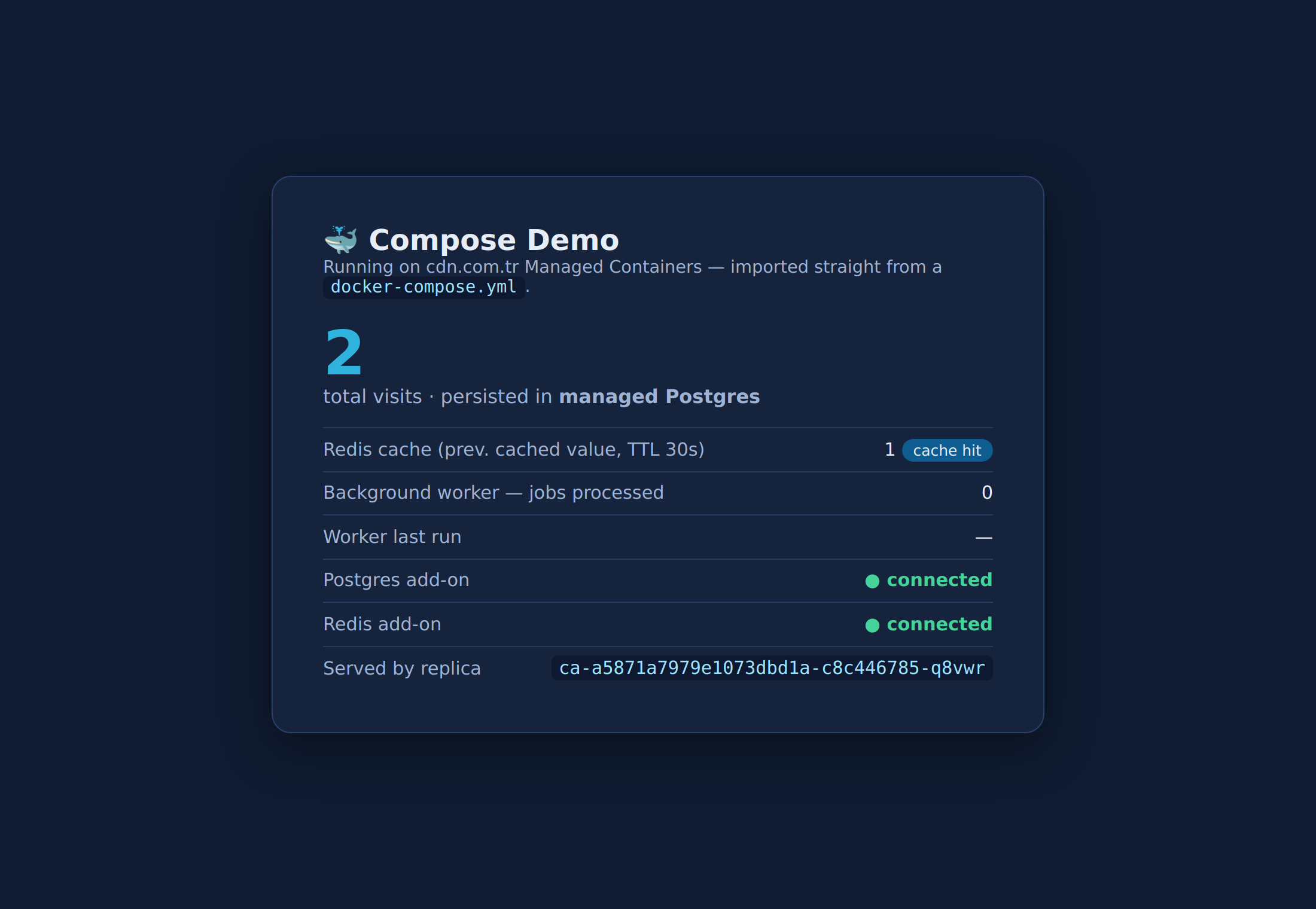
docker-compose.yml and served on <uid>.cdn.com.tr.One thing to know about shared state. Because each app gets its own managed Postgres/Redis, the worker writes to a different database than web reads. To genuinely share a SQL database, let one app own it and have the others reach it by app name over the private network (http://<app-name>:<port>), exactly like a compose service. Passwordless backends (Redis, NATS) can be shared by setting their URL as env on each consumer. For the single-image case — one Docker container published behind the CDN edge — see the guide on running a Docker container on the CDN.