
Why the edge is still serving the old file
When a visitor requests a file, the nearest edge location checks whether it holds a valid copy. If it does, it answers immediately without asking your server — that is the entire point of a CDN, and it is why your site is fast. How long "valid" lasts comes from the caching headers your origin sent when the edge first fetched the file, most often Cache-Control: max-age.
So when you upload a new version and still see the old one, nothing is broken. You changed the file at the origin, but the edge is still inside the window you told it to keep the previous copy for. You have three ways out: wait for it to expire, purge it now, or publish under a new URL so there is nothing stale to serve. Which one you should pick is the rest of this guide.
Exact, prefix, variants — pick the smallest hammer
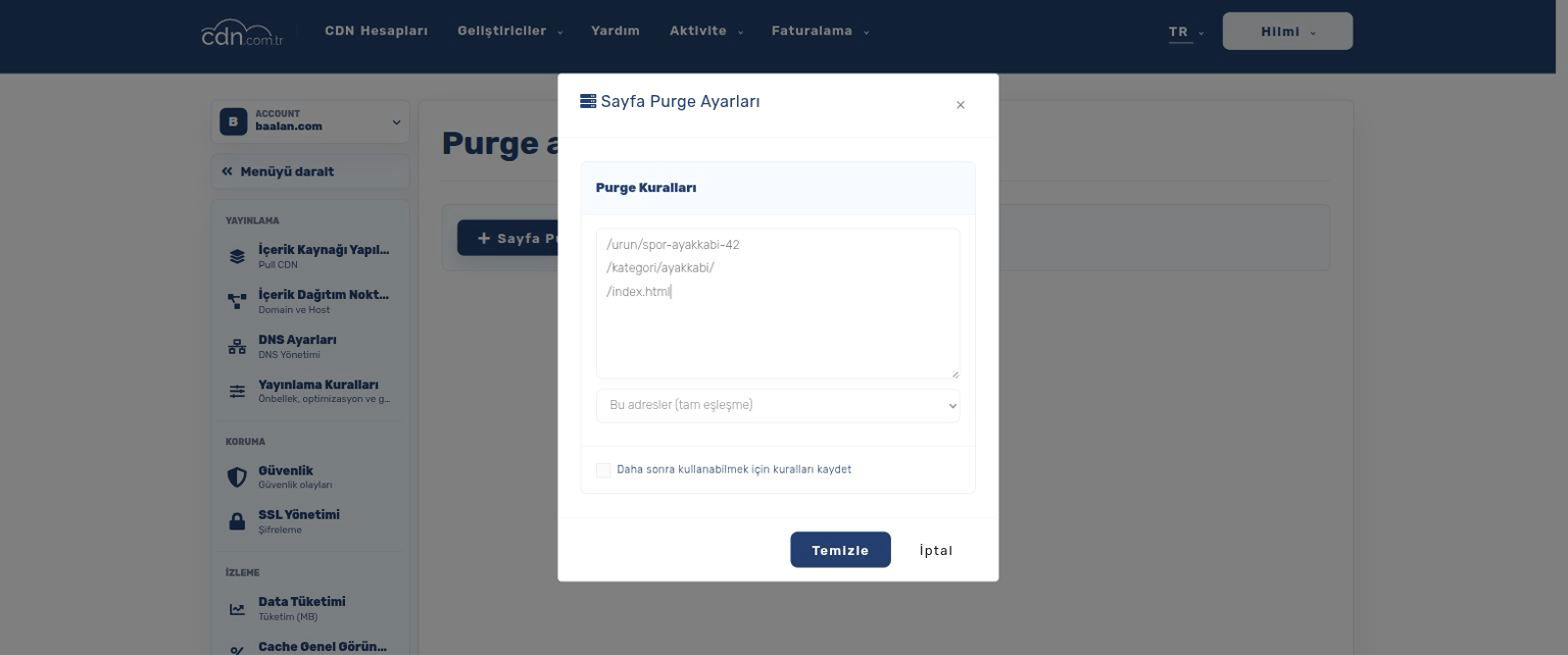
An exact purge removes one specific URL. This is the right default: you replaced /images/hero.jpg, so you purge /images/hero.jpg. Precise, instant, and everything else stays warm.
A prefix purge removes everything underneath a path — /assets/ clears every file below it. Use it after a deploy that rewrote a whole directory. It is powerful, so aim carefully: purging /images/ because one logo changed throws away thousands of useful cached objects.
A variants purge clears every cached version of the same key. The edge may hold several copies of one URL — compressed and uncompressed, or different device variants — and if you replace the underlying file you want all of them gone, not just the one that happens to match your own browser. This is the option people miss when a purge "did not work" for some visitors but worked for them.
The same three choices from the CLI
# one URL (the usual case)
cdnctl purge --account <uuid> --path /images/hero.jpg

# several at once
cdnctl purge --account <uuid> --paths "/css/app.css,/js/app.js"

# everything under a folder
cdnctl purge --account <uuid> --path /assets --type prefix

# every cached variant of one key
cdnctl purge --account <uuid> --path /index.html --type variants

# save this list to re-run after future deploys
cdnctl purge --account <uuid> --paths "/,/sitemap.xml" --save
When to purge everything (and what it costs)
Purging the entire account cache is the right call after a site-wide change: a redesign, a template edit that touches every page, a CMS migration. It is one command and it is honest about what it does — everything is gone.
Understand the cost first. For a while after a full purge, the edge holds nothing, so requests that used to be answered near the user now travel to your origin. A site that comfortably serves ten requests a second behind cache may suddenly face all of them at once. On a small origin that is the difference between fast and struggling. Because it is deliberately blunt, the CLI requires you to confirm.
Explicit confirmation is required — that is intentional
# clear the whole account cache
cdnctl purge all --account <uuid> --yes

# watch it complete
cdnctl purge all status --account <uuid>
The purge you never have to run
The best invalidation strategy is not needing one. If a file's name changes whenever its contents change — app.a1b2c3.js, style.9f8e7d.css — then a deploy publishes new URLs. The old ones are still cached, harmless and unreferenced; the new ones have never been cached, so every visitor gets the new version instantly. Every modern build tool does this for you, and it is why asset caching can safely be set to a year.
That leaves the files whose names cannot change: your HTML pages, /sitemap.xml, robots.txt, JSON feeds. Give those a short max-age so they refresh on their own, and purge them explicitly when you need the change to be visible immediately. In practice a healthy setup purges a handful of paths after a deploy, not thousands.
Why a purge did not seem to work
Almost every "the purge did nothing" report is one of four things, and none of them is the edge being wrong.
Your own browser cached it too. Cache-Control applies to the browser as well; the edge is fresh but your laptop is not. Check in a private window or with a cache-busting query string before escalating.
You purged a different URL than the one being served. /page and /page/ can be separate cache keys, as can the http and https versions, or a URL with tracking parameters attached. Purge the URL your users actually request.
You purged one variant. Compressed and uncompressed copies of the same file are separate entries — if some visitors see the new version and others do not, purge with type variants.
Or the origin re-served the old file. A purge only tells the edge to forget; the next request refetches from your server. If your own application or plugin cache still holds the old page, the edge faithfully caches the stale copy again. Clear the application cache first, then purge the edge.
Making it part of the deploy, not a thing you remember
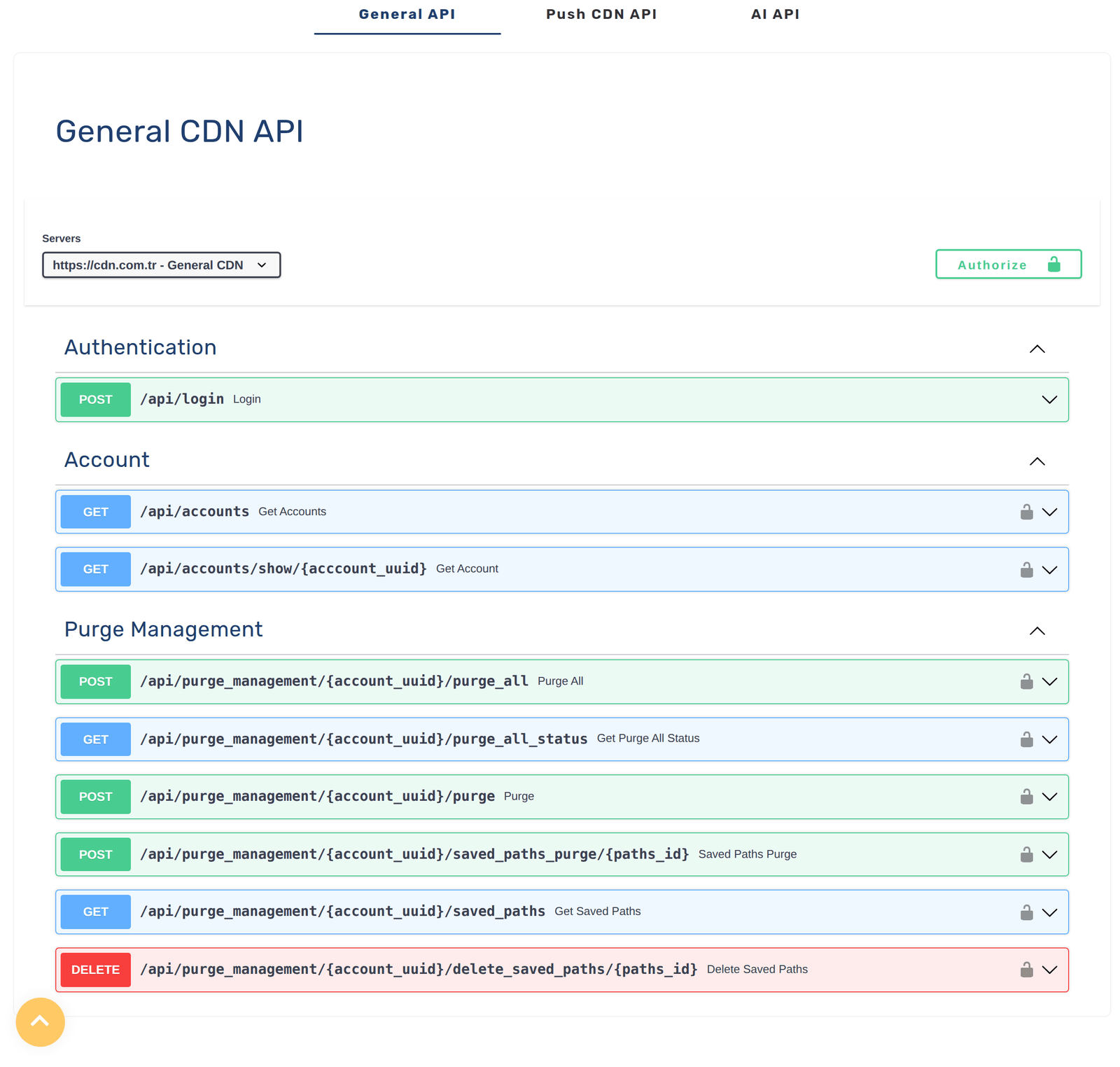
Purging by hand after every release is a step someone eventually forgets, usually on the release that mattered. Put it in the pipeline: after the deploy succeeds, run a purge for the handful of paths whose names never change. On cdn.com.tr you can do that from the panel, through the REST API, or with cdnctl in a CI job — the same command whether it runs from your terminal or a runner. Saved path lists (--save) make this a one-liner you keep instead of a list you retype.
Frequently asked questions
How long does a purge take to apply?
It is fast — the edge drops the cached entry and the very next request for that URL refetches from your origin. What is not instant is your own browser cache, which is a separate copy governed by the same Cache-Control header.
Is purging the whole cache harmful?
Not harmful, but not free: until the cache refills, requests reach your origin instead of being absorbed near the user. It is the right tool after a site-wide change and the wrong tool for one edited image.
What is the difference between a purge and a hard refresh?
A hard refresh (Ctrl+F5) only clears YOUR browser copy — it fixes what you see and nothing for anyone else. A purge clears the shared copy at the edge, which is what every visitor is being served.
Can I purge automatically after deploying?
Yes — that is the recommended setup. Call the purge API or run cdnctl as the last step of your deploy pipeline, targeting the paths whose filenames do not change (HTML pages, sitemap, feeds).