CONTAINER APPS · ПРАКТИЧЕСКИЙ ПРИМЕР
От docker-compose.yml до работающего приложения — в панели и с cdnctl
Полное пошаговое руководство, готовое для копирования, для разработчиков, которые хотят быстро попробовать платформу. Мы берём небольшой, но реалистичный многосервисный проект — веб-API, фоновый воркер и управляемые Postgres + Redis — и запускаем его на CDN.com.tr Managed Containers прямо из одного файла docker-compose.yml. Тот же сценарий показан двумя способами: мышью из панели управления и целиком через CLI cdnctl. Выбирайте, какой вам удобнее.
Два управляемых app (web, worker), каждое подключено к управляемым аддонам Postgres и Redis, и веб-приложение, работающее на собственном субдомене https://<uid>.cdn.com.tr — всё создано из compose-файла, без Dockerfile или YAML для Kubernetes.
Пример проекта
Сервис web считает посещения в Postgres и кеширует последнее значение счётчика в Redis; worker — это фоновый цикл без порта, использующий те же управляемые аддоны. Оба образа заранее собраны и запушены в registry, который платформа может забрать (собраны под linux/amd64). Платформа автоматически внедряет данные подключения — ваш код просто читает DATABASE_URL и REDIS_URL.
# docker-compose.yml
services:
  web:
    image: mediatriple/compose-demo-web:1.0.0
    ports:
      - "8080:8080"          # container port 8080 is exposed; the host side is ignored
    environment:
      APP_NAME: "Compose Demo"
    healthcheck:
      test: ["CMD", "wget", "-qO-", "http://localhost:8080/health"]
    depends_on: [db, cache]

  worker:
    image: mediatriple/compose-demo-worker:1.0.0   # no port -> stays private
    depends_on: [db, cache]

  db:
    image: postgres:16     # -> managed Postgres add-on (DATABASE_URL injected)

  cache:
    image: redis:7         # -> managed Redis add-on (REDIS_URL injected)
Как сопоставляются сервисы. Каждый сервис с заранее собранным образом становится управляемым app. Сервисы, чей образ — postgres, mysql/mariadb, redis или nats, становятся управляемыми аддонами и подключаются к каждому app, который от них depends_on — каждое потребляющее app получает собственный экземпляр аддона, а учётные данные внедряются как env (DATABASE_HOST/PORT/NAME/USER, REDIS_URL) и секреты (DATABASE_PASSWORD, DATABASE_URL). Сервис с build: (без заранее собранного образа) отклоняется — сначала опубликуйте образ. Максимум 20 сервисов.
A · Из панели
1 · Откройте Container Apps
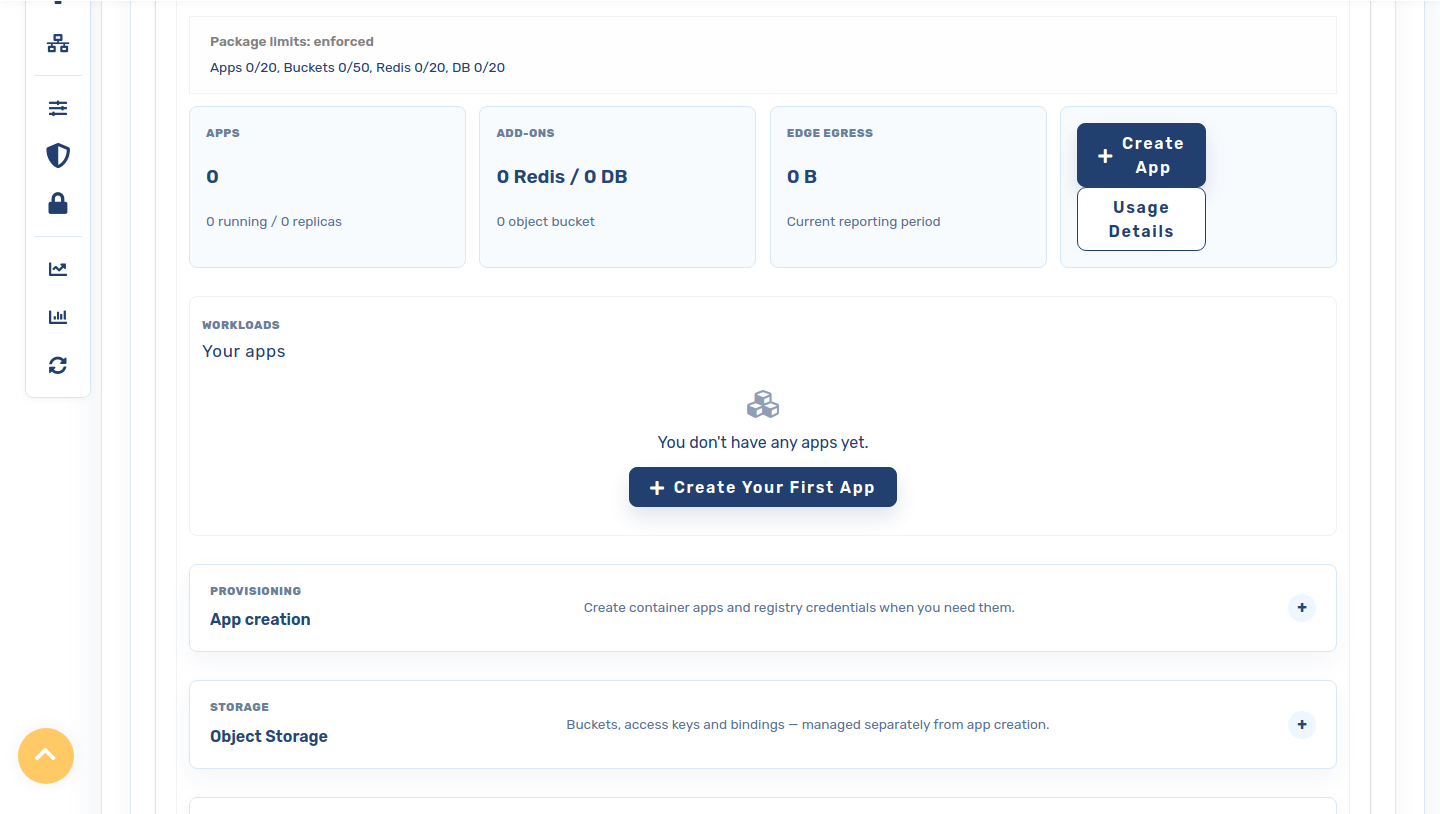
Войдите в систему, откройте CDN Accounts, нажмите на значок настроек у вашего аккаунта, выберите вкладку Platforms, затем Container Apps (в первый раз нажмите Activate). Обзор показывает лимиты вашего пакета и пустой список приложений.
2 · (Приватные образы) добавьте учётные данные registry
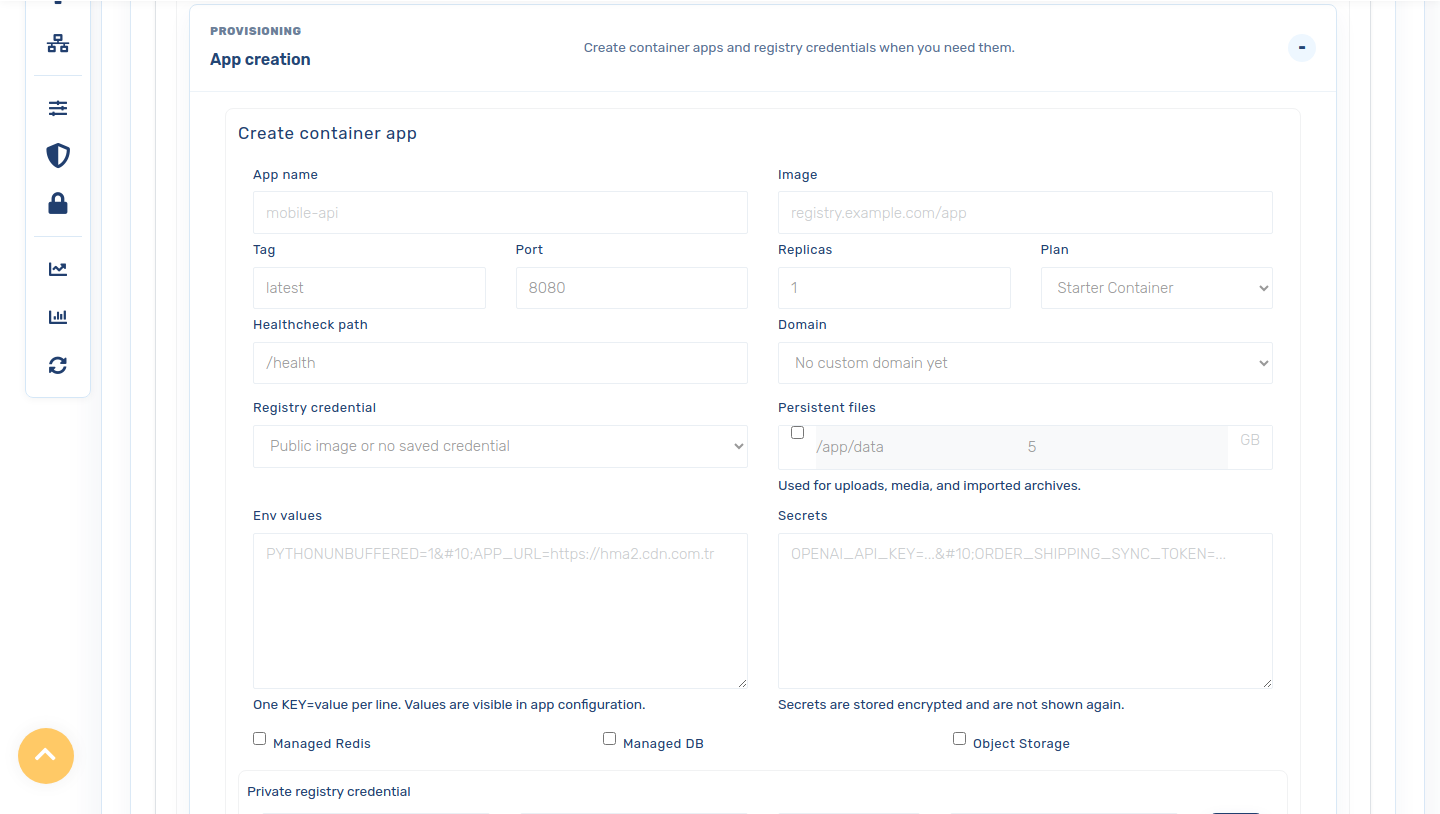
Если ваши образы приватные, откройте Create App и в строке Private registry credential добавьте имя, URL registry (https://index.docker.io/v1/ для Docker Hub), ваше имя пользователя и токен доступа только для чтения, затем сохраните. Токен хранится зашифрованным и больше никогда не показывается. Публичные образы не требуют учётных данных.
3 · Import From Docker Compose
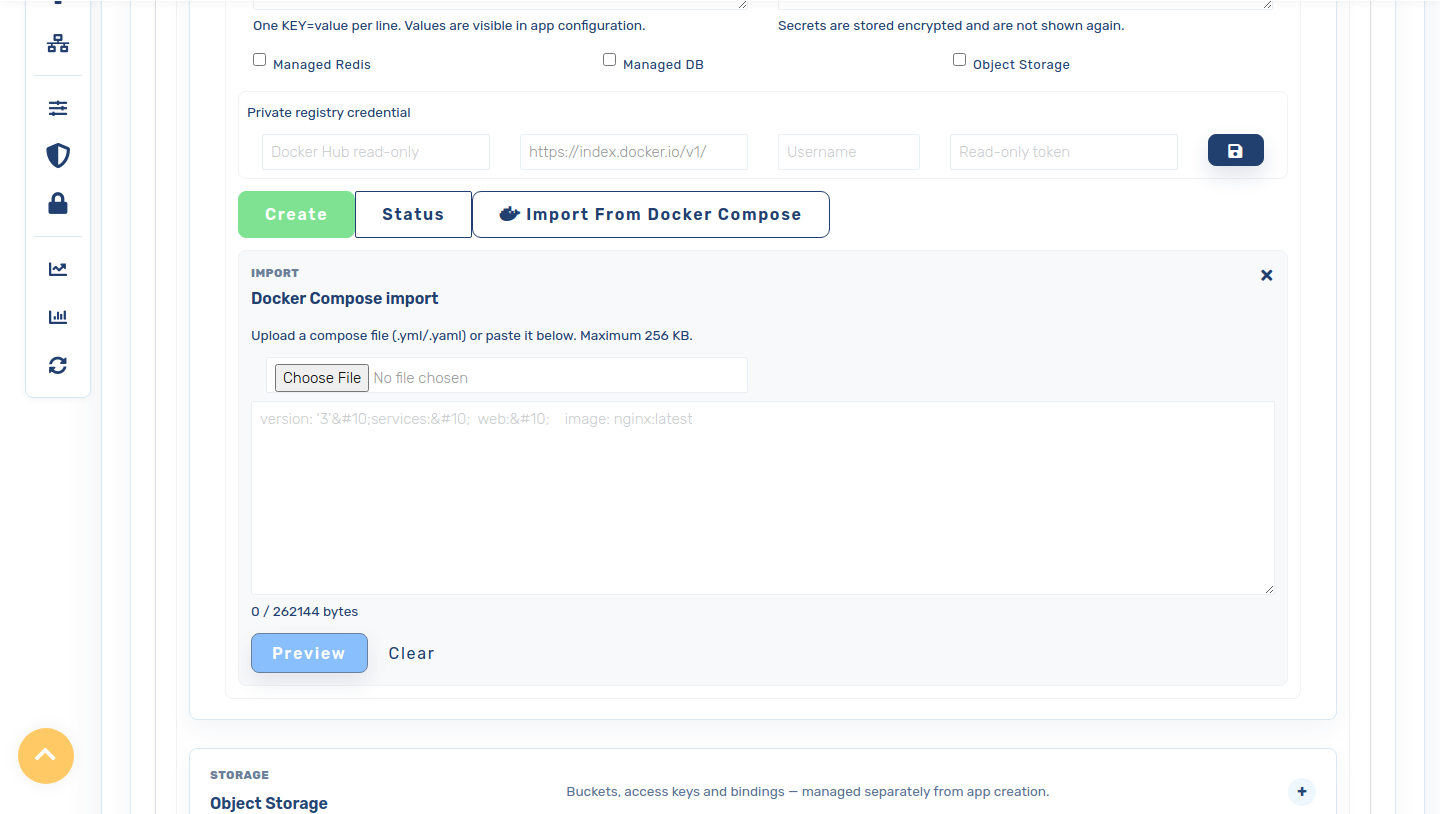
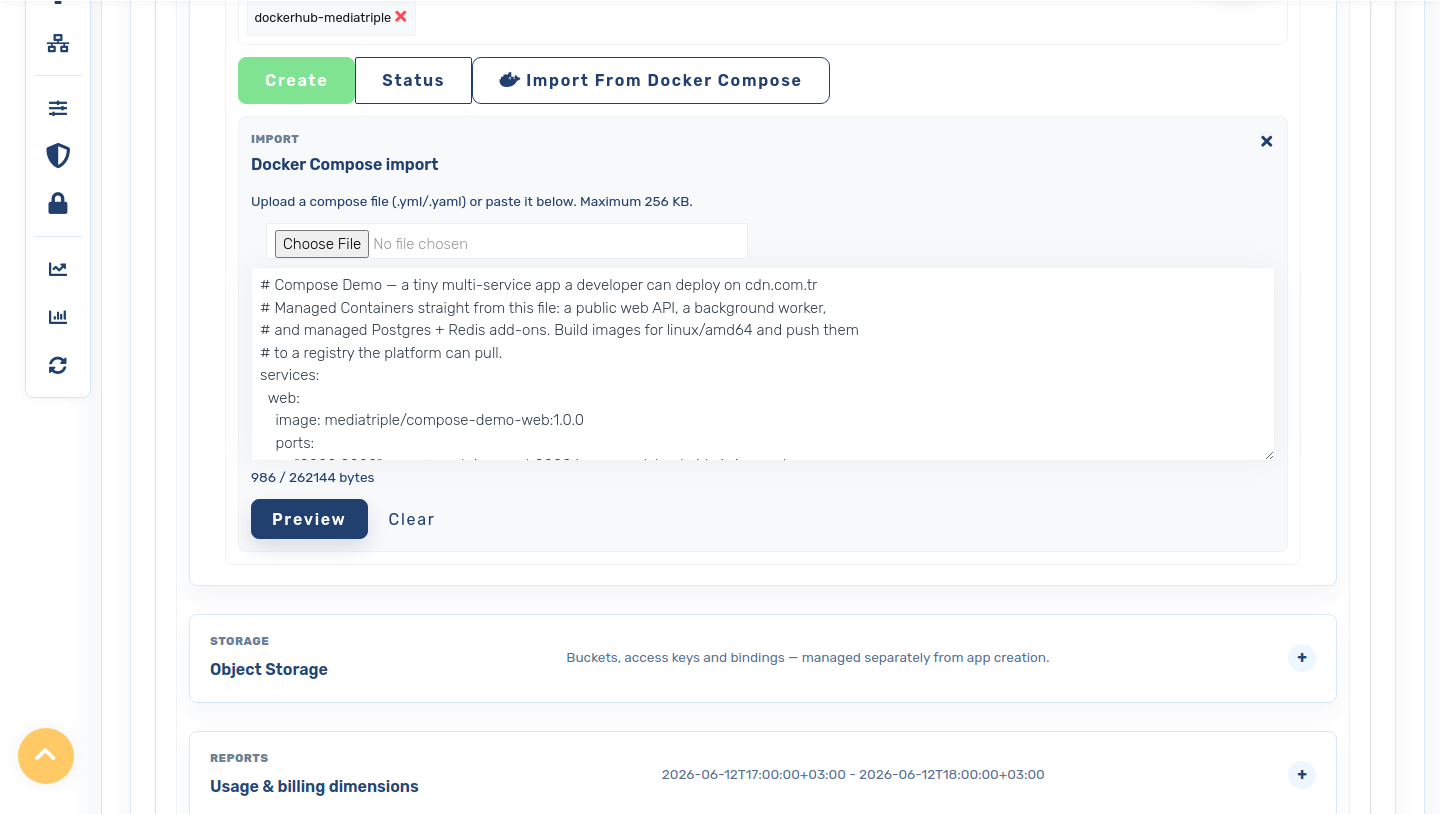
Переключитесь на Import From Docker Compose, затем загрузите или вставьте ваш docker-compose.yml (максимум 256 КБ).
4 · Просмотрите план
Нажмите Preview. Платформа разбирает файл и показывает неразрушающий план: каждое app, которое будет создано, образ/порт/реплики, подключённые аддоны и все предупреждения — пока ничего ещё не тронуто.
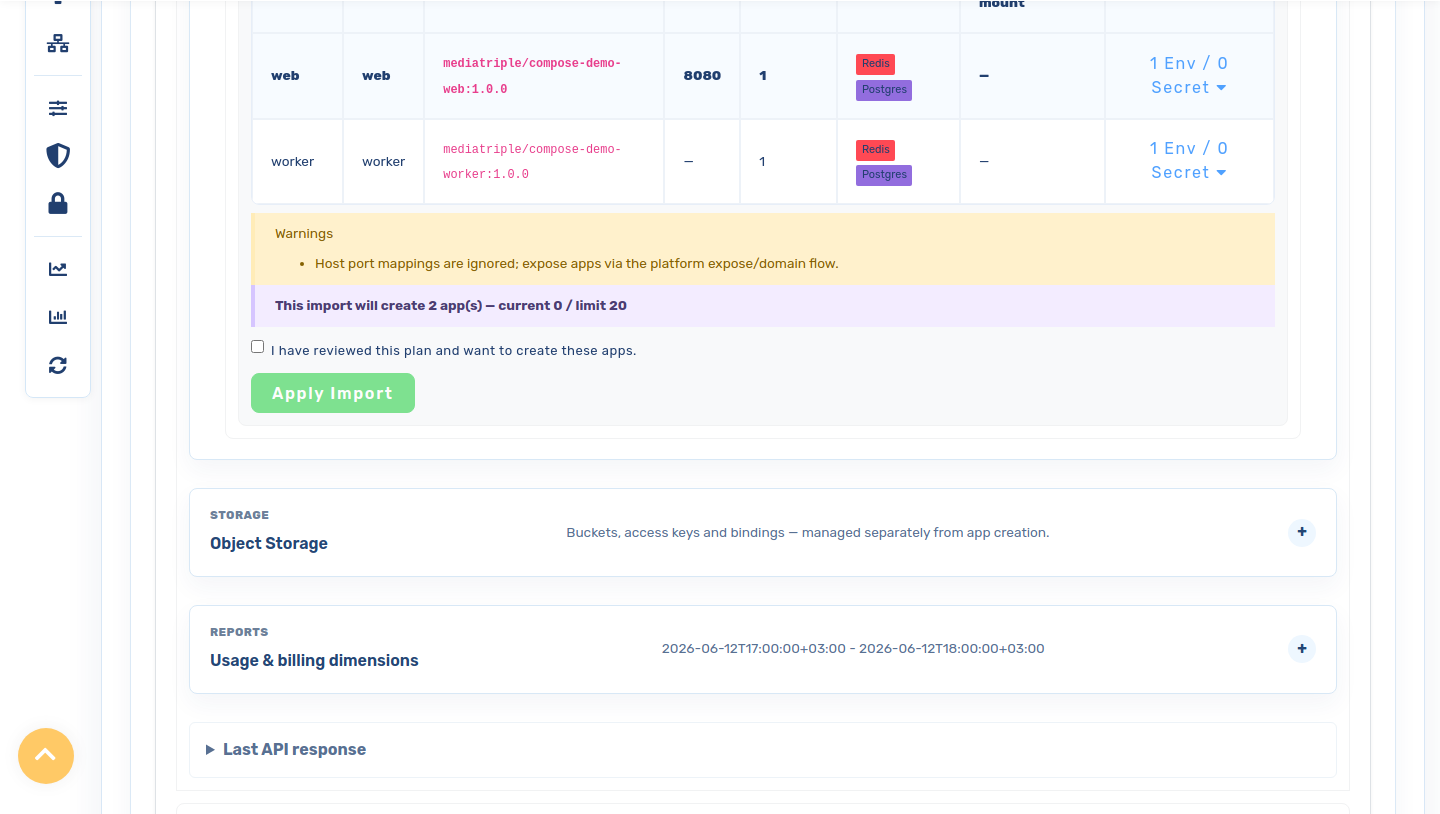
web (порт 8080) и worker, у каждого аддоны Redis + Postgres. Предупреждение отмечает, что сопоставления host-порта игнорируются — вы публикуете app через поток expose/domain платформы.5 · Примените, наблюдайте за деплоем
Отметьте I have reviewed this plan и нажмите Apply Import. Apply работает по принципу всё-или-ничего; app и аддоны создаются, деплои ставятся в очередь. В течение минуты app переходят в running в списке Your apps.
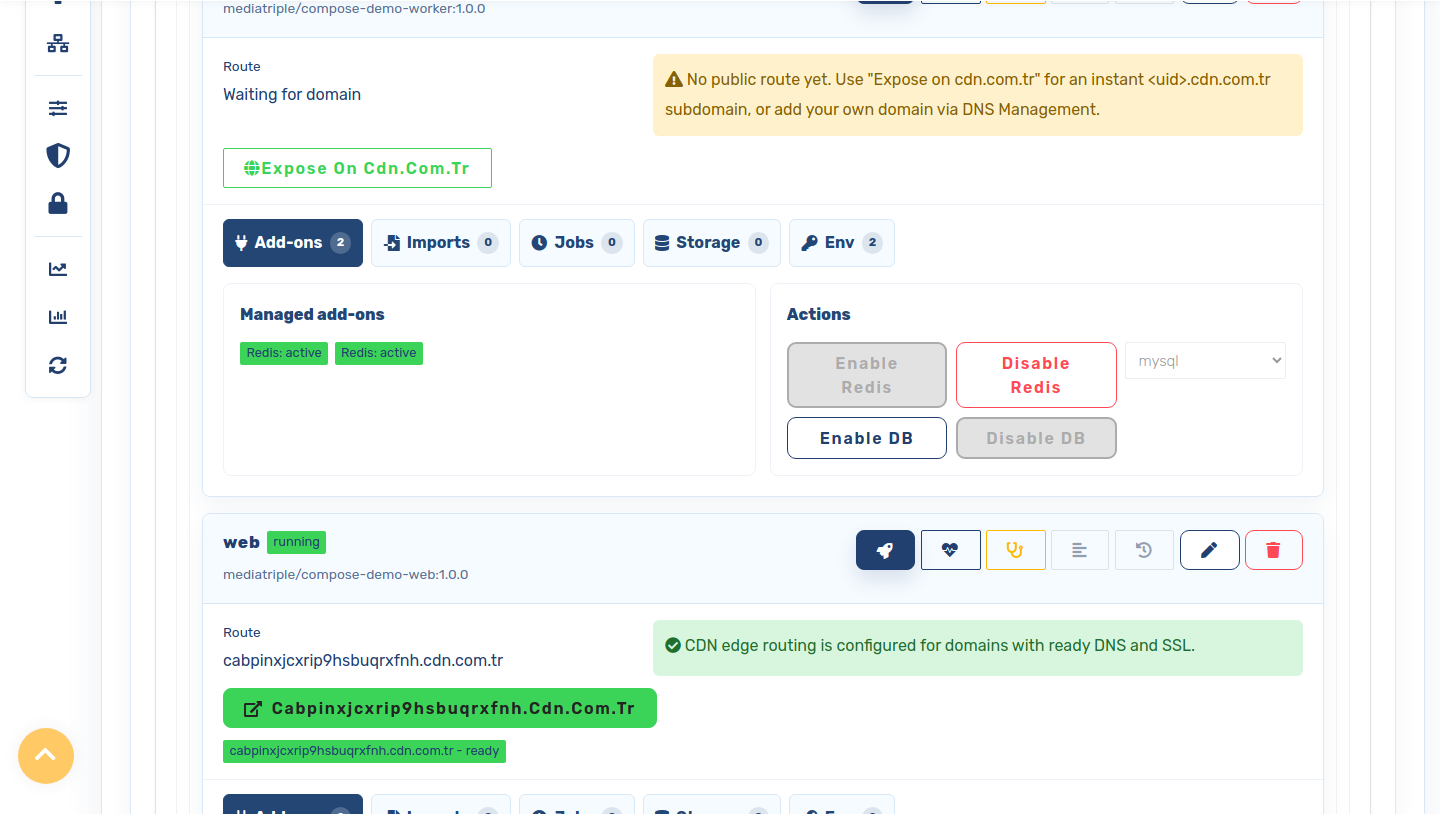
web и worker) работают в списке Your apps. Откройте app (Manage →), чтобы попасть к его аддонам и действию Expose on cdn.com.tr.6 · Опубликуйте веб-приложение
Откройте app web (Manage →) и нажмите Expose on cdn.com.tr, чтобы мгновенно создать субдомен <uid>.cdn.com.tr (HTTPS настраивается за вас). Оставьте worker приватным. Вот и всё — ваш compose-проект работает. Смотрите результат ↓
B · Из терминала (cdnctl)
У каждого шага выше есть эквивалент в CLI. Установите cdnctl, затем:
1 · Войдите и найдите свой аккаунт
cdnctl login
cdnctl accounts list                 # copy your account <uuid>
2 · Просмотрите план
Тот же неразрушающий план, что и в панели — возвращает app, аддоны и предупреждения в виде JSON. Предпросмотр всегда возвращает только ключи env/secret, никогда не значения.
cdnctl container compose preview --account <uuid> --file docker-compose.yml3 · Примените
Заново планирует на стороне сервера (клиентскому плану никогда не доверяют), применяет права вашего пакета, затем создаёт app в порядке зависимостей.
cdnctl container compose apply --account <uuid> --file docker-compose.yml --yesПриватные образы. Создайте учётные данные registry один раз (панель → Private registry credential, или API) и прикрепите их к app, чтобы платформа могла их забрать — публичным образам ничего не нужно.
4 · Наблюдайте, публикуйте, проверяйте
cdnctl container apps list   --account <uuid>
cdnctl container apps wait   --account <uuid> --app <app_uuid> --status running --timeout 300
cdnctl container apps expose --account <uuid> --app <app_uuid>   # -> <uid>.cdn.com.tr
cdnctl container apps logs   --account <uuid> --app <app_uuid> --tail 100
cdnctl container apps status --account <uuid> --app <app_uuid>
Результат
Веб-приложение работает на своём субдомене cdn.com.tr — счётчик посещений хранится в управляемом аддоне Postgres, кешируется в управляемом аддоне Redis, оба сообщают connected, обслуживает управляемая реплика.
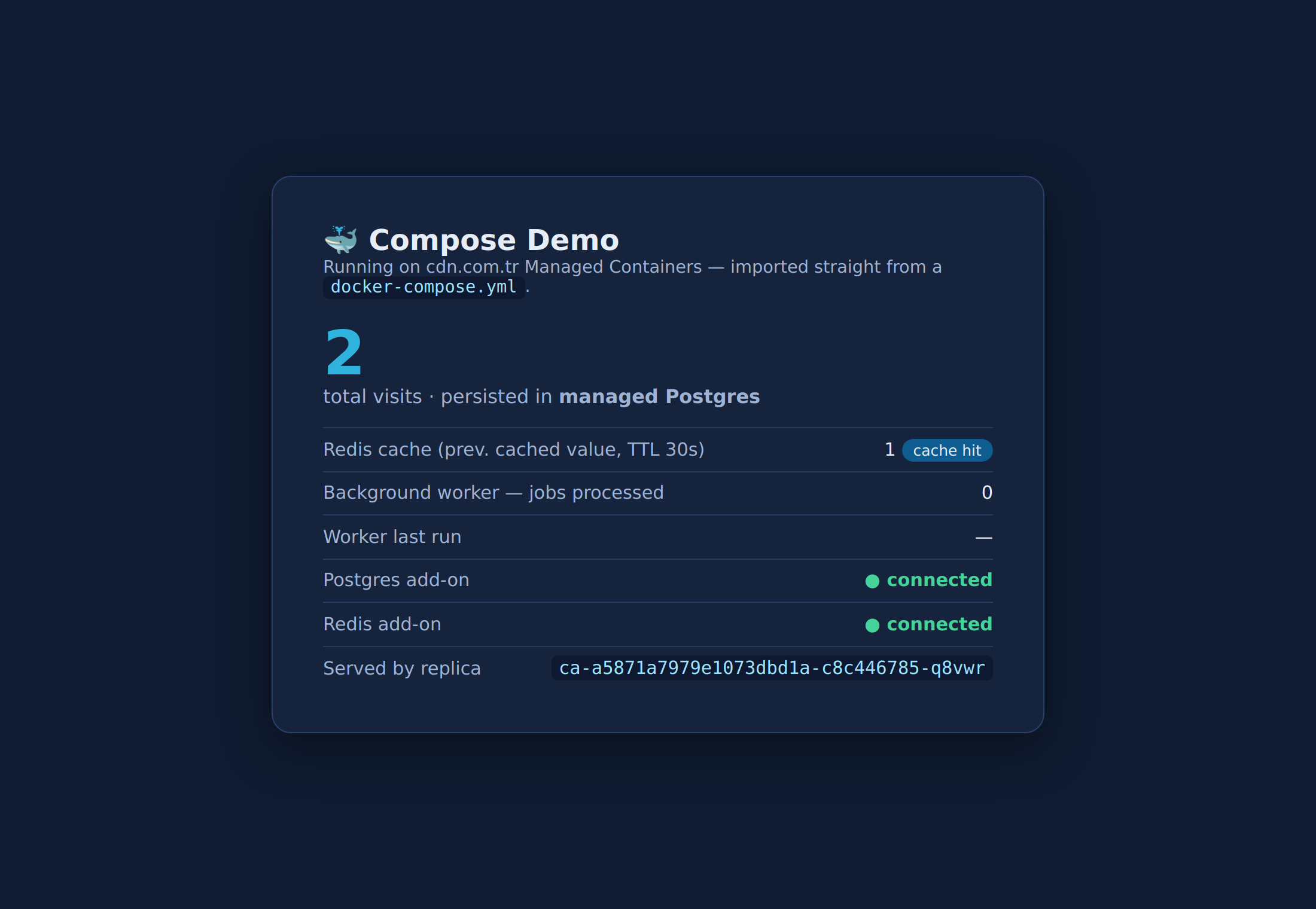
docker-compose.yml и обслуживаемое на <uid>.cdn.com.tr.Что нужно знать об общем состоянии. Поскольку каждое app получает собственный управляемый Postgres/Redis, worker пишет в другую базу данных, чем читает web. Чтобы по-настоящему разделить SQL-базу данных, пусть одно app владеет ею, а остальные обращаются к нему по имени app через приватную сеть (http://<имя-app>:<порт>) — точно как сервис compose. Бэкенды без пароля (Redis, NATS) можно разделять, задав их URL как env на каждом потребителе.