
Why speed decides e-commerce revenue
In a physical shop a slow queue annoys customers; online, it silently empties the cart. As pages get slower, more shoppers abandon before they buy, and the effect is sharpest on mobile, where most retail traffic now happens. Speed also shapes how many people ever reach your products: Google uses page experience — including Core Web Vitals like Largest Contentful Paint — as a ranking signal, so a faster store earns more organic traffic too.
What makes stores slow is well understood. Product photos, galleries and banners dominate page weight; distance between your server and each shopper adds latency to every request; and the store platform rebuilds pages with code and database queries on every visit. A CDN attacks all three at once: it caches the heavy shared assets on edge servers near your shoppers, while passing the personal parts — cart, account, checkout — straight through to your store so prices and stock stay correct. The rest of this guide is the concrete setup on cdn.com.tr, step by step.
Step 1 — Put your store behind the CDN
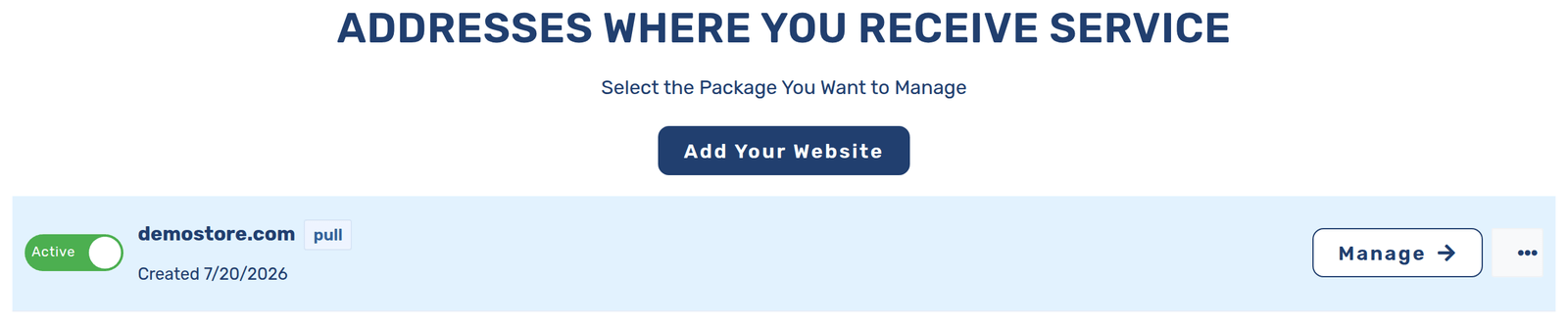
Sign up at cdn.com.tr, click “Add Your Website” and choose Pull CDN as the content source — the CDN fetches pages and images from your existing store (the origin) and serves them from the edge, so nothing about your store's code has to change.
Next you choose how traffic reaches the CDN. There are three options. “Custom Domain/Subdomain” is the usual choice for a store: you add a CNAME record for a subdomain (say cdn.yourstore.com) or point the root domain's A record at the CDN, and your DNS stays wherever it is today. “Full DNS Transfer” moves your nameservers to cdn.com.tr so the whole domain is managed and served from one place. “Default Endpoint” gives you a ready cdn.com.tr subdomain immediately — handy for testing before you commit your real domain.
After connecting, open your account and set the origin under Content Source Configuration: your server's address, ports, and whether the CDN should connect to it over HTTPS only. Add your storefront domains under Content Delivery Points, verify ownership with the meta-tag or DNS TXT record the panel shows you, and tick “Use automatic Let's Encrypt certificates” — SSL for your store is then issued and renewed for you, so the padlock on your checkout never lapses.
Step 2 — The cache rule that does most of the work
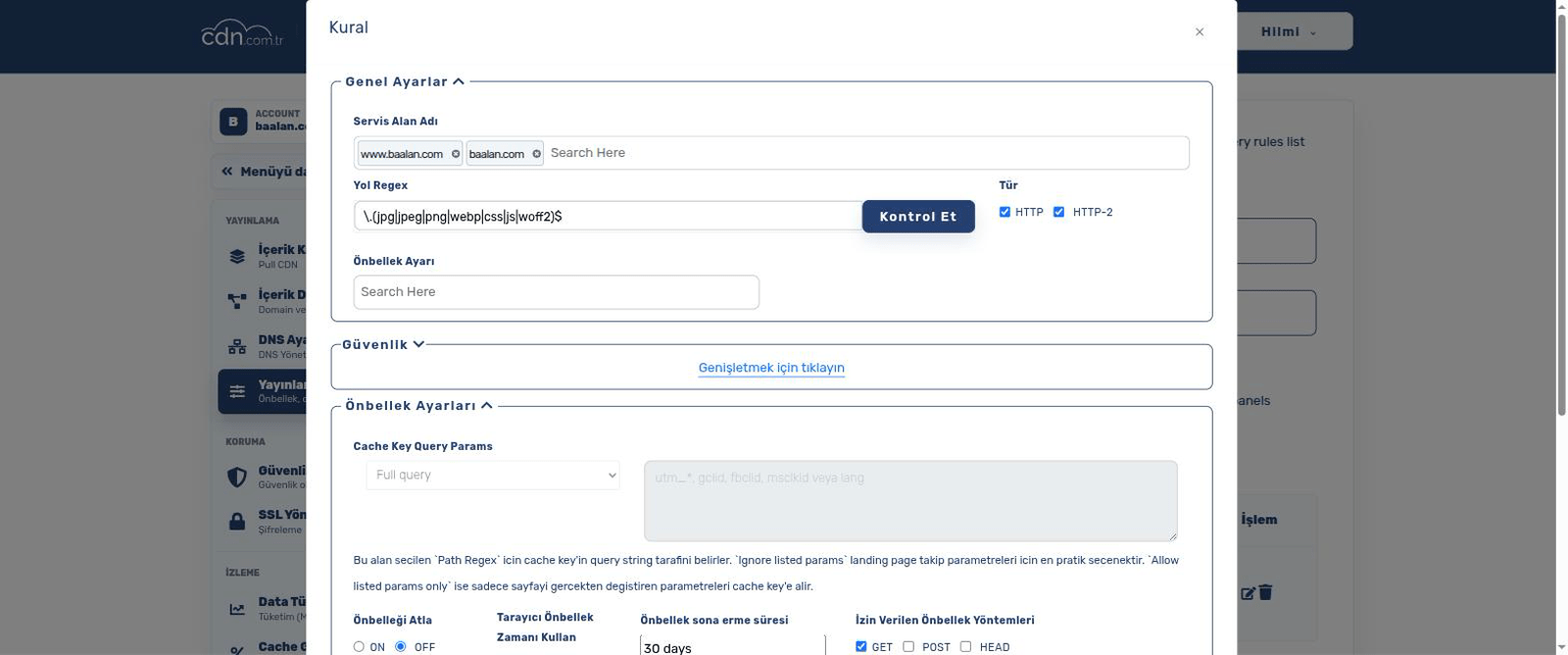
Open Delivery Rules (“Cache and Security”) in your account and add a rule for your static assets. The rule matches by path regex; a single pattern covers product photos, stylesheets, scripts and fonts at once. Set the cache expire time long — 30 days is a good default for product images, because in the next step you will purge changed files explicitly instead of waiting for the cache to expire. Enable browser caching too, so returning shoppers keep assets locally.
Two options in this form matter more for a store than anywhere else. First, the cache-key query-param mode: campaign links arrive with tracking parameters (utm_source, gclid, fbclid), and with the default full-query key every variant of the link creates a separate cache copy of the same page. Switch the rule to ignore listed params and list your tracking parameters — one cached copy serves every ad click. Second, bypass-by-cookie: add your platform's cart/session cookie names (for WooCommerce, woocommerce_items_in_cart and woocommerce_cart_hash) so that the moment a shopper puts something in the basket, their pages go to the origin and stay personal while everyone else keeps getting fast cached pages.
Do not write a rule that caches everything. HTML pages of a store change with stock and price; keep them on a short TTL or leave them dynamic, and let the asset rule carry the weight — on a typical store the images, CSS and JavaScript it covers are 80–90% of the bytes on every page.
A path regex for a store's static assets
\.(jpg|jpeg|png|webp|gif|svg|css|js|woff2?)$

# matched:   /products/red-shoe-42.jpg   /assets/theme.css
# not matched: /  /category/shoes  /cart  /checkout
Step 3 — Turn on image optimization
For most stores, images are the largest thing on the page, so optimizing them moves the needle more than almost anything else. Optimization means three things working together: compressing images so they carry less data, converting them to modern formats such as WebP that are dramatically smaller than old JPEG/PNG at the same quality, and sending an appropriately sized image instead of a huge original scaled down in the browser.
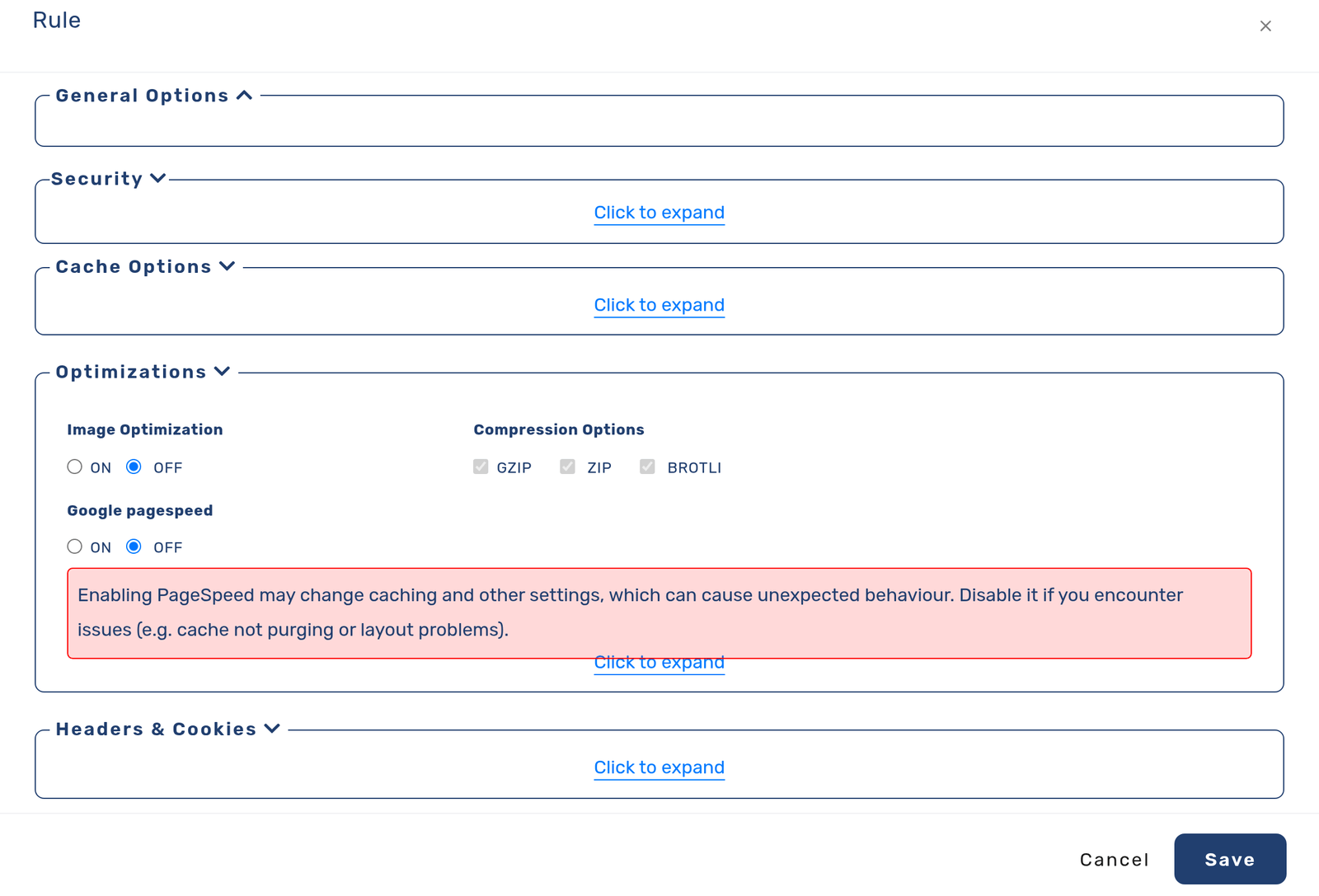
On cdn.com.tr this is a per-rule switch: open the Optimizations panel of the delivery rule you created in step 2 and enable Image Optimization and Compression. From then on the edge compresses your product photos and serves WebP to browsers that accept it, automatically — you keep your originals, shoppers get the fast version suited to their screen. The payoff is direct: lighter product and category pages, faster Largest Contentful Paint, and a better Core Web Vitals score that helps you rank. More detail lives in the image optimization guide.
If your store runs on WooCommerce on your own hosting, the free CDNTR plugin does the same work from the WordPress side: it creates WebP (and AVIF where your server supports it) from your product photos, serves your media through the CDN, and — as the next step explains — clears the cache automatically when a product changes.
Step 4 — Purge when a price or stock changes
A 30-day cache is only safe if you clear changed pages the moment they change. That is what purging is for, and precision matters: purge the product that changed, not the whole site.
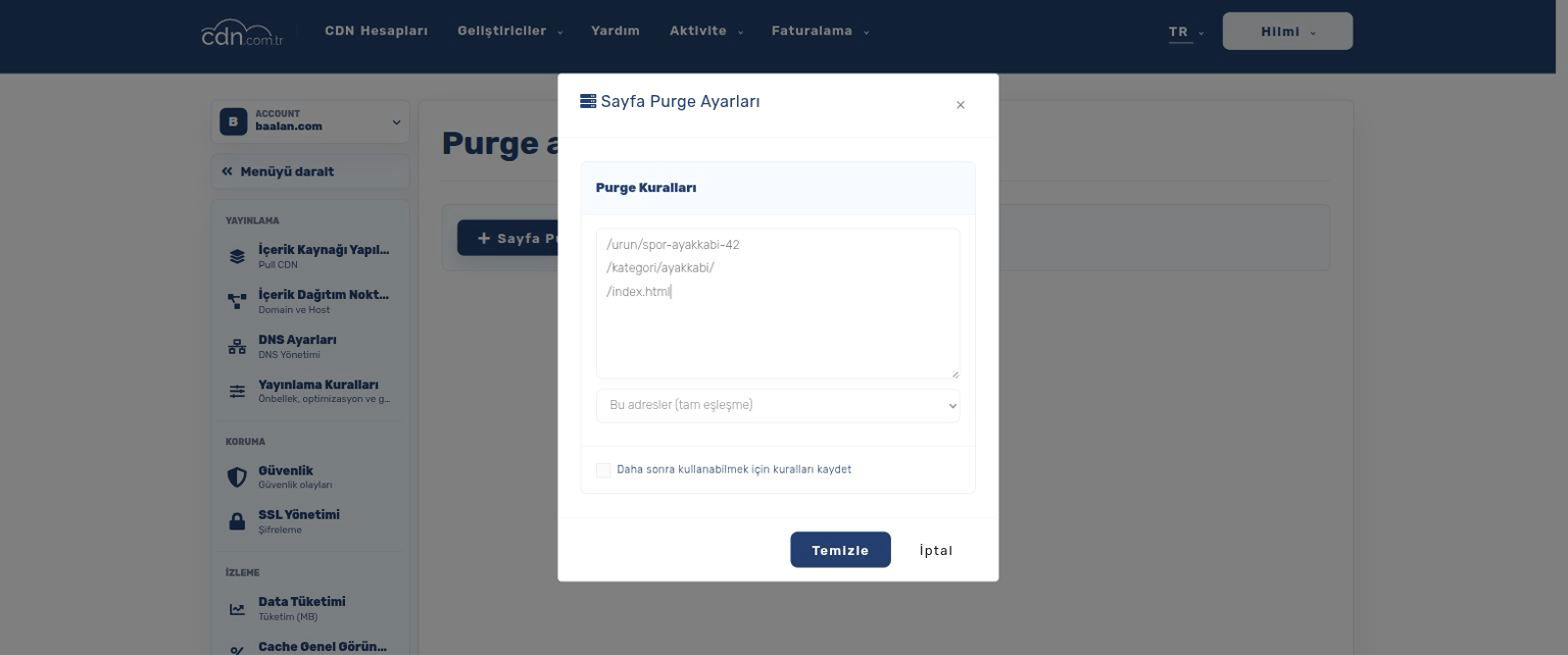
In the panel, open Cache Cleanup (“Purge Management”) and click Page Purge. Paste one path per line and pick the match type: “These URLs (exact match)” clears exactly those paths; “Everything under these folders (*)” clears a whole prefix — useful after a bulk price import into one category; “All variants of these URLs” also clears mobile/desktop and query-string variants of the same page. You can save a rule set — for example your homepage, campaign page and best-seller category — and re-run it with one click on campaign morning. “Clear All” exists too, but treat it as a last resort: it empties the entire cache, and every shopper after it hits your origin at once until the cache refills.
If your store is WooCommerce, you do not have to purge by hand at all. The CDNTR plugin hooks into WordPress: when you update a product it purges the product page, the shop page and every category the product belongs to; when you edit a category or change the theme it purges accordingly — and then re-warms the cache so even the first visitor after the change gets an edge-cached page.
Step 5 — Automate it with cdnctl (and let your AI use it)
Everything above can also be driven from the command line. cdnctl is cdn.com.tr's open CLI: you log in with your panel credentials, pick your account once, and purge from scripts, cron jobs or deploy pipelines. Every command prints JSON, which makes it equally usable by humans, CI systems and AI agents — if you let an assistant manage your store, it can read the output and operate the CDN for you. For non-interactive environments, set the CDN_ACCESS_TOKEN and CDN_ACCOUNT environment variables instead of logging in.
The pattern that fits e-commerce best: make your ERP, PIM or import script call cdnctl after it writes new prices — the products change and their pages are fresh on the edge within seconds, without anyone opening the panel. The full CDN API is available too if you would rather integrate directly.
curl -fsSL https://cdn.com.tr/downloads/cdnctl/install.sh | sh
cdnctl login --email you@yourstore.com     # password prompted, hidden
cdnctl accounts ls                          # find your account UUID
cdnctl accounts use <uuid>                  # set it as default

# price changed on one product:
cdnctl purge --path /product/running-shoes-42 --path /category/shoes/

# bulk import touched a whole category:
cdnctl purge --path /category/shoes/ --type prefix

# nuclear option (empties the entire cache):
cdnctl purge all --yes
cdnctl purge all status
Step 6 — The campaign-day checklist
The moments a store most needs to stay fast are the moments it is most stressed: Black Friday, a discount campaign, a launch. Edge caching changes the maths — thousands of shoppers opening the same campaign page are served cached copies near them while your origin only handles carts and checkouts — but a calm campaign day still needs preparation.
Before the campaign: confirm the asset rule from step 2 matches your campaign page's images, purge the campaign and category pages so the new prices are what gets cached, then open those pages once yourself — the visit warms the edge cache. Do not run Clear All right before a traffic peak; purge the specific paths that changed.
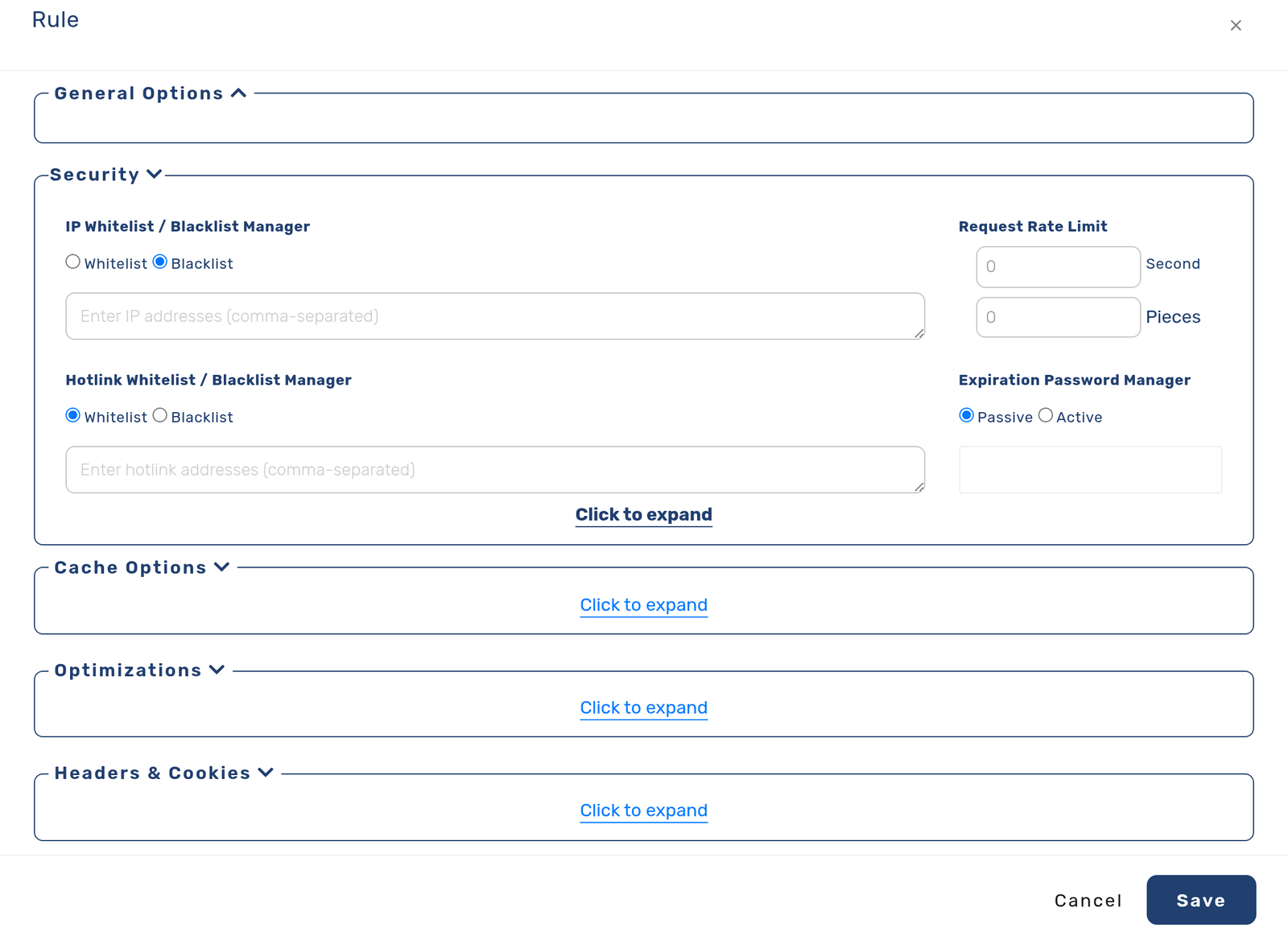
For protection, open the Security panel of your delivery rules and set a request rate limit, so no single client can hammer your origin. In the Security page, switch Bot Protection (JS Challenge) to “risky visitors” — datacenter IPs, anonymous proxies and fake crawlers get a JavaScript check while real shoppers and verified search engines pass untouched. If your store sells to specific markets you can also restrict by country ISO codes. WAF and DDoS protection are already running at the edge in front of you; the edge security guide covers what they absorb.
Or skip the assembly: host the store on cdn.com.tr
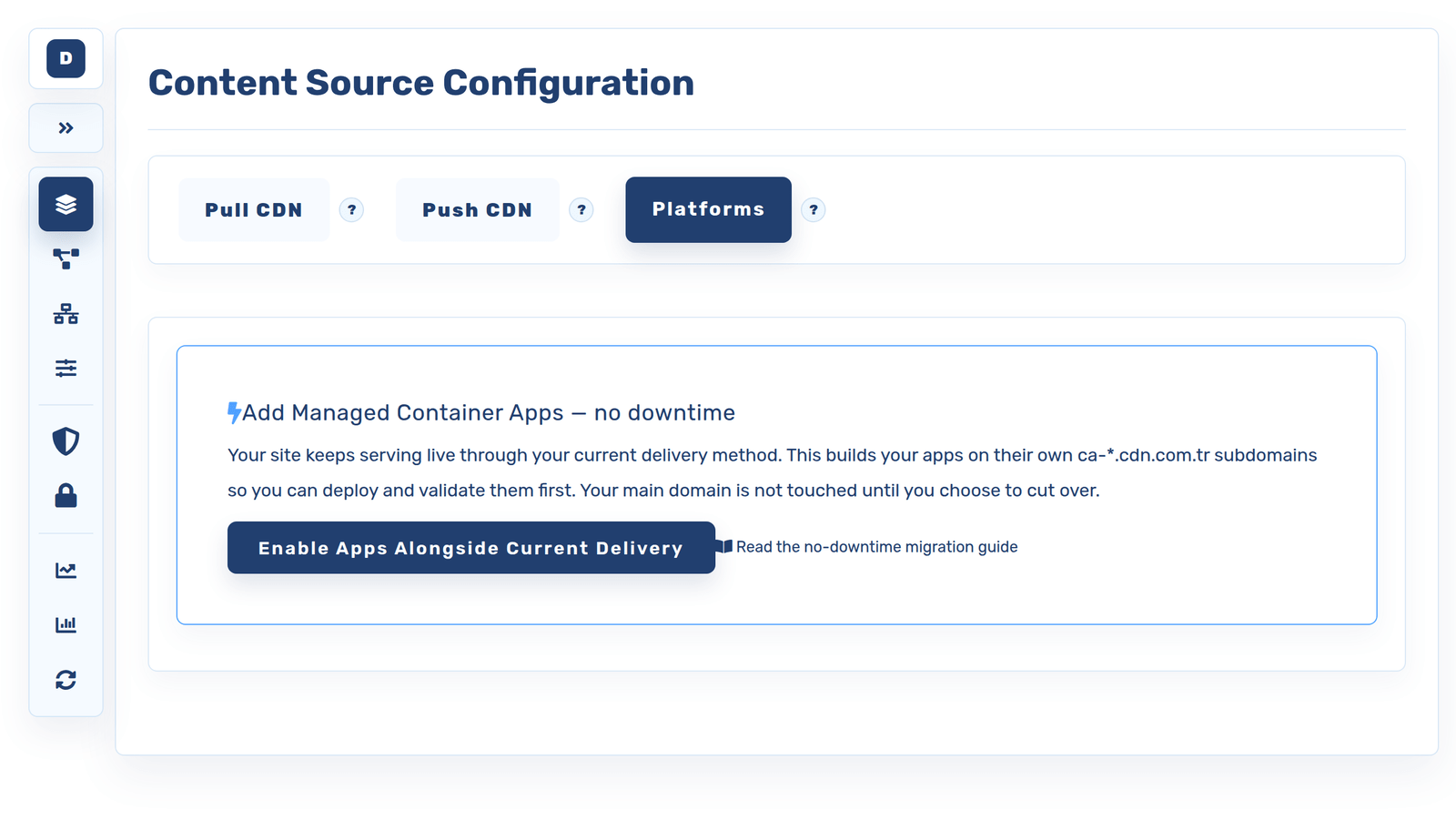
Everything in this guide assumed your store already has hosting and the CDN sits in front of it. There is a shorter path: host the store on cdn.com.tr itself. Managed WordPress hosting comes with WooCommerce-ready WordPress, the CDNTR integration, edge caching, image optimization and automatic SSL pre-wired — steps 1 to 4 of this guide are effectively done for you on day one. If you run a custom stack instead, you can deploy your own application containers behind the same edge, and keep product media in S3-compatible object storage delivered by the same network.
Either way, the CDN, image optimization, WAF, DDoS protection, SSL, hosting and storage live under one panel and one bill — a single place to run the store instead of stitching services together.
Where an e-commerce CDN pays off most
Fashion, furniture, electronics — stores with big galleries win the most from edge delivery and automatic image optimization.
Edge caching absorbs the traffic spike from a discount email or launch so the store stays fast instead of crashing when sales peak.
Local edges serve Turkish shoppers quickly and international buyers from nearby, so a wider audience gets a fast experience.
cdnctl and the REST API let your import scripts, CI jobs and AI agents purge and manage the CDN without a human in the panel.
E-commerce CDN FAQ
Will a CDN break my cart or checkout?
No. The asset rule in this guide caches only static files (images, CSS, JavaScript), and the bypass-by-cookie option sends any shopper with items in the basket straight to your store. Prices, stock and totals stay correct for each buyer; only the heavy, common assets are cached and accelerated.
Shoppers see an old price after I updated a product — why?
The old page is still cached on the edge. Purge the product's path (and its category page) from Cache Cleanup in the panel or with cdnctl; if the store is WooCommerce, install the CDNTR plugin and this purge happens automatically every time you save a product.
What is the fastest single change to speed up my store?
For most stores, image optimization — compressing product photos and serving modern formats like WebP at the right size. Images usually dominate page weight, so this alone often improves load time and Core Web Vitals noticeably. On cdn.com.tr it is one switch in your delivery rule's Optimizations panel.
Can I use this with WooCommerce?
Yes. You can put cdn.com.tr in front of an existing WooCommerce store following this guide, or host it on cdn.com.tr's managed WordPress platform where the CDN, caching, image optimization and SSL come pre-configured. The free CDNTR plugin adds automatic purging and WebP/AVIF conversion either way.
Can I automate purges from my ERP or import scripts?
Yes. The cdnctl CLI logs in with your panel credentials and purges paths, prefixes or the whole cache from any script, with JSON output and environment-variable auth (CDN_ACCESS_TOKEN) for CI. There is also a REST API if you prefer direct integration.
How does a CDN help during a big sale?
During a spike, edge caching serves the many shoppers hitting the same campaign and category pages from copies near them instead of overloading your origin, while your server handles only the genuinely dynamic cart and checkout steps. Add a request rate limit and bot protection in “risky visitors” mode and the store stays responsive under the crowd.
Which ecommerce platforms can sit behind the CDN?
Any store whose DNS and origin you control. Self-hosted platforms — WooCommerce, Magento, OpenCart, PrestaShop or a custom build — work exactly as described in this guide: you point the domain at cdn.com.tr, keep the store where it runs, and the edge serves the static side while cart and checkout pass through. Fully-hosted SaaS storefronts are the exception: if the provider does not let you point the domain at another origin and terminates TLS itself, no third-party CDN can be placed in front of it, and you are limited to whatever caching that platform includes. If you are unsure, check whether your plan allows a custom domain with your own DNS records — that is the deciding detail.